
VS Code (Chat / Copilot)
Use KoboiLLM models in built-in VS Code Chat (GitHub Copilot) through the Custom Endpoint provider. This guide follows the KoboiLLM setup screenshots using gpt-5.6-luna and the Responses API.
Prerequisites
- Use a VS Code version with Add Models → Custom Endpoint available. Update VS Code if this option is missing.
- Have an active KoboiLLM Virtual Key and sufficient balance.
- Make sure your key can access the chosen model. See Check Active Models to check the model name.
1. Open the Chat model settings
- Open the Chat panel using the icon at the top right of VS Code. On Windows/Linux, you can also press
Ctrl+Alt+I. - Click the model picker at the bottom of the chat input, shown as Auto in the screenshot.
- Select Manage Language Models. Alternatively, open the Command Palette (
Ctrl+Shift+Pon Windows/Linux orCmd+Shift+Pon macOS) and run Chat: Manage Language Models.
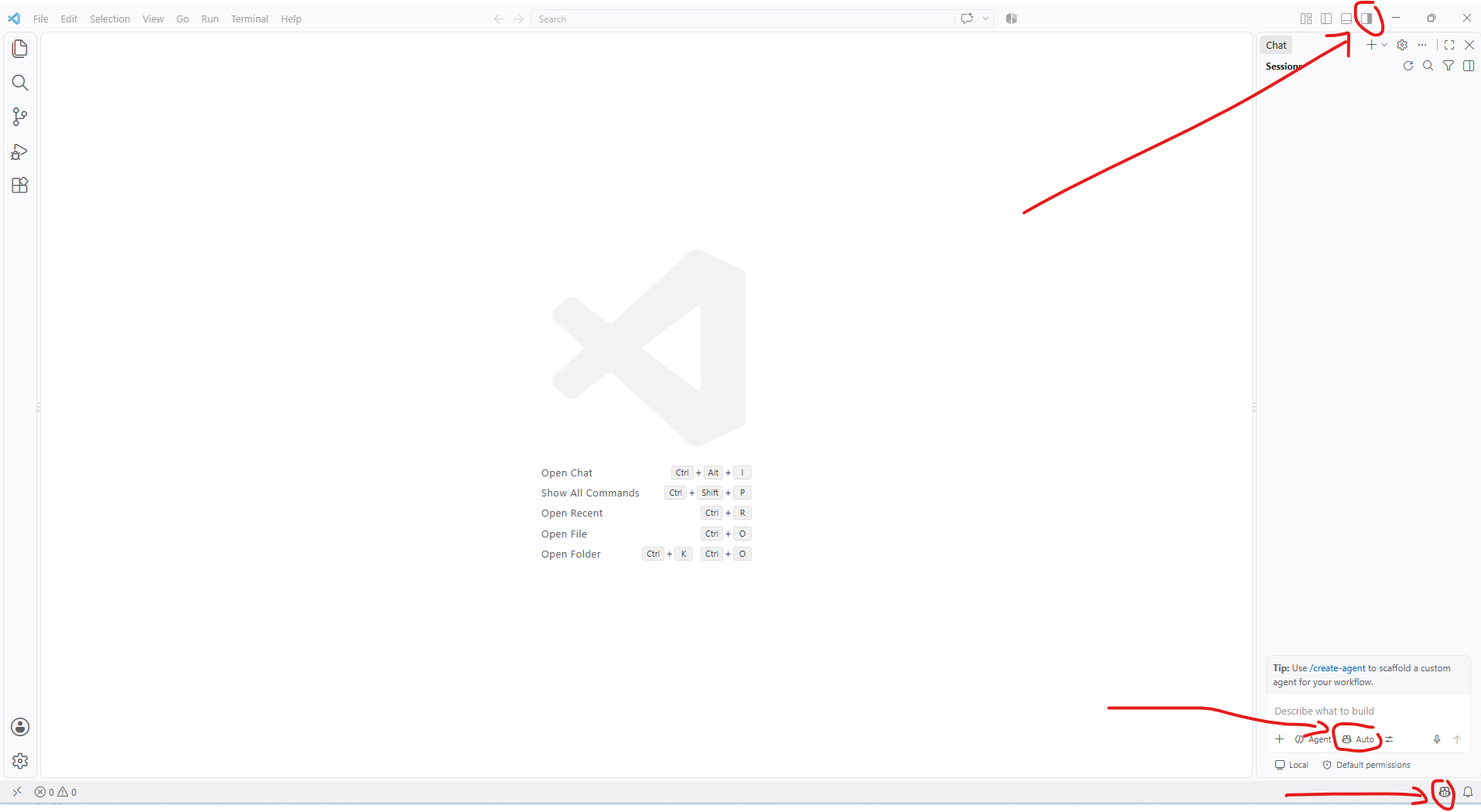
Click a screenshot to view it at full size.
2. Add the KoboiLLM Custom Endpoint
In the Language Models editor, click Add Models, then select Custom Endpoint.
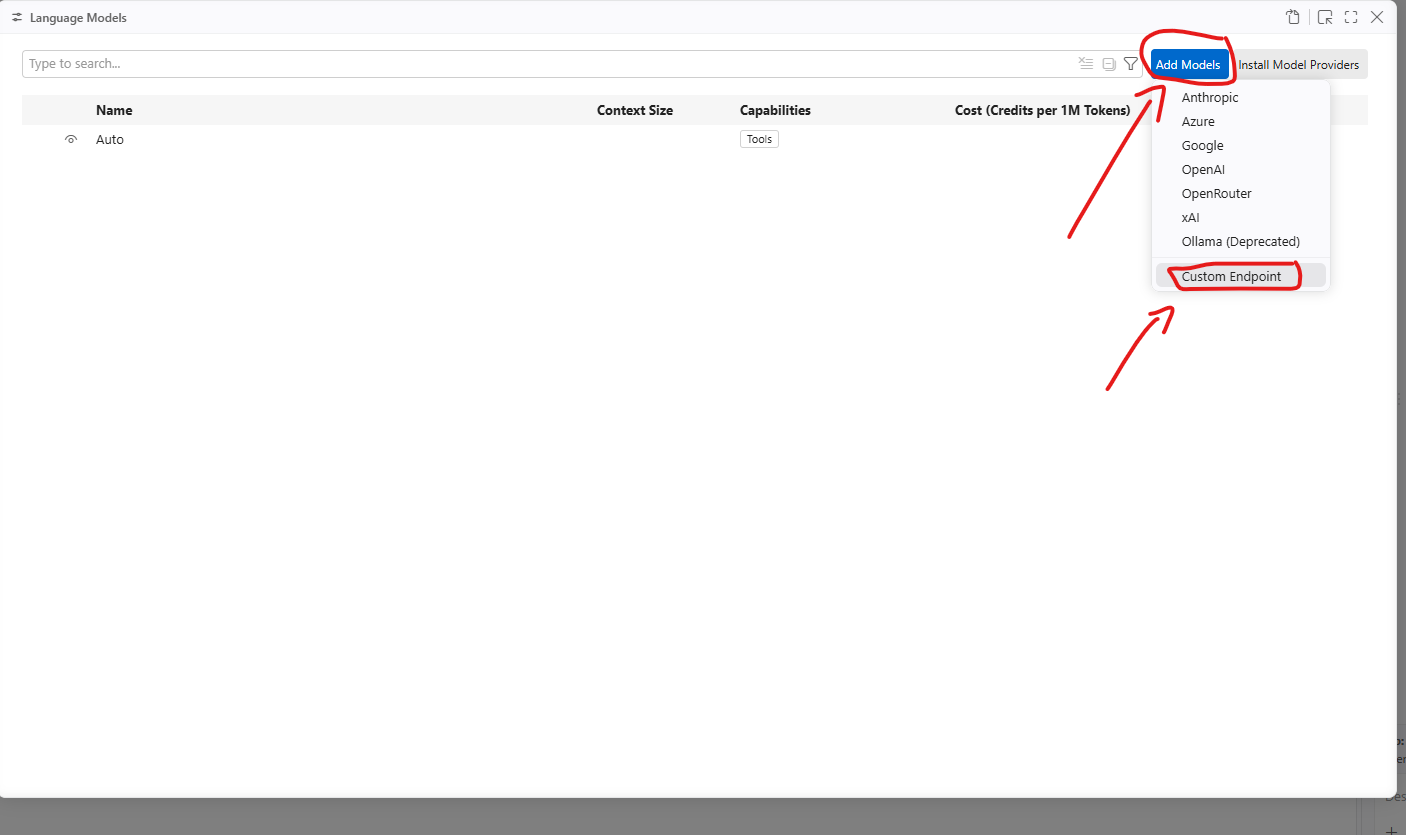
Enter KoboiLLM as the Group Name and press Enter.

Follow the display-name and API-key prompts that appear. Enter your Virtual Key, for example sk-xxxxxx. For the standard configuration below, enter the key without a Bearer prefix.
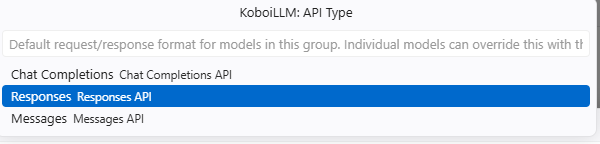
When prompted for API Type, choose Responses.
3. Configure the model
VS Code opens chatLanguageModels.json. Use the provider object below for the KoboiLLM group. If you already have other providers, add the KoboiLLM object to the existing array and keep the other providers’ configurations.
[ { "name": "KoboiLLM", "vendor": "customendpoint", "apiKey": "${input:koboillmApiKey}", "apiType": "responses", "models": [ { "id": "gpt-5.6-luna", "name": "GPT-5.6 Luna", "url": "https://api.koboillm.com/v1/responses", "toolCalling": true, "thinking": true, "supportsReasoningEffort": [ "none", "low", "medium", "high", "xhigh", "max" ], "reasoningEffortFormat": "responses", "vision": true, "maxInputTokens": 922000, "maxOutputTokens": 128000 } ] }]| Setting | Value / purpose |
|---|---|
vendor | customendpoint selects the Custom Endpoint provider |
apiType | responses, matching the API Type selection |
id | The API model name available to your Virtual Key |
Model name | The display name in the Chat model picker |
url | Full endpoint: https://api.koboillm.com/v1/responses |
toolCalling | Enables tools for models that support them |
thinking and supportsReasoningEffort | Declare reasoning support and available effort levels |
vision | Declares support for image input |
maxInputTokens / maxOutputTokens | Token limits VS Code uses for this model |
The model name, effort levels, and token limits above follow the screenshot example. If you switch models, adjust the capabilities and limits to match that model. These values do not increase the server’s model limits.
View the original configuration screenshot
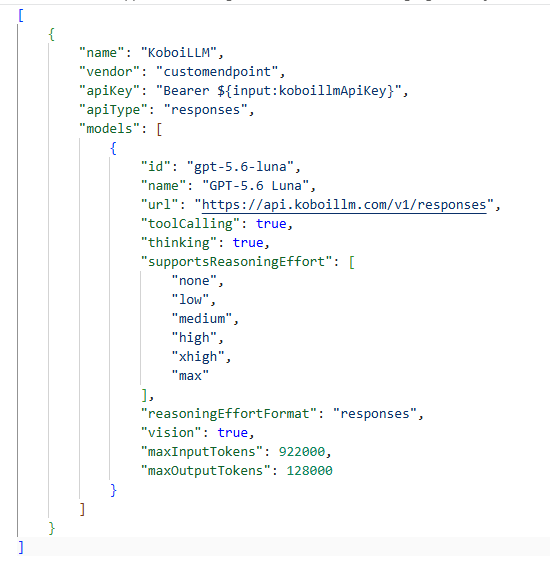
The original screenshot uses "apiKey": "Bearer ${input:koboillmApiKey}". The copyable example above uses the current standard configuration. Read the authentication notes below before adding a manual prefix.
4. Select the model and try Chat
- Save
chatLanguageModels.json. - Return to Chat and open the Auto model picker.
- Select GPT-5.6 Luna from the KoboiLLM group.
- Send a short message, for example:
Reply with one word: ready. - For coding assistance with tools, select Agent mode and open the project folder you want to work on.
If the model does not appear, run Developer: Reload Window or restart VS Code. You can review API usage through Check Balance & Usage.
Troubleshooting
API key rejected / 401 Unauthorized
Check that your Virtual Key is still active, contains no extra whitespace, and that the apiKey reference points to the key you entered.
For a standard Responses configuration, VS Code automatically sends Authorization: Bearer <apiKey>. Start with a plain sk-xxxxxx key and "apiKey": "${input:koboillmApiKey}". See the VS Code Custom Endpoint authentication reference.
Note from the screenshots: if authentication still fails in a version or flow that requires a manual prefix, try entering Bearer sk-xxxxxx at the API-key prompt. Keep the JSON reference free of the Bearer prefix if you already entered it in the prompt. The other approach shown in the screenshot adds the prefix to the JSON reference and uses a plain key in the prompt.
Use a manual prefix only if the client has not already added one. The resulting header must be Bearer sk-xxxxxx, not Bearer Bearer sk-xxxxxx; remove the manual prefix if it is duplicated.
Model not found or missing in Agent mode
- Match
idto the name in the KoboiLLM model list and confirm that your key has access. - For Agent mode, use a model with tool-calling support and
"toolCalling": true. - Save the configuration and reload VS Code.
Endpoint or reasoning effort rejected
- Set
apiTypetoresponsesand use the full URL ending in/v1/responses. - If the server rejects an effort level, select a supported value and update
supportsReasoningEffortaccordingly. - For context or token-limit errors, check the model’s input and output limits. The example values do not apply to every model.
See the official VS Code language model guide for menu and configuration updates.