
Members & Budgets
Open Members and select your team. The page shows members, roles, and member budgets/spend according to your permissions.
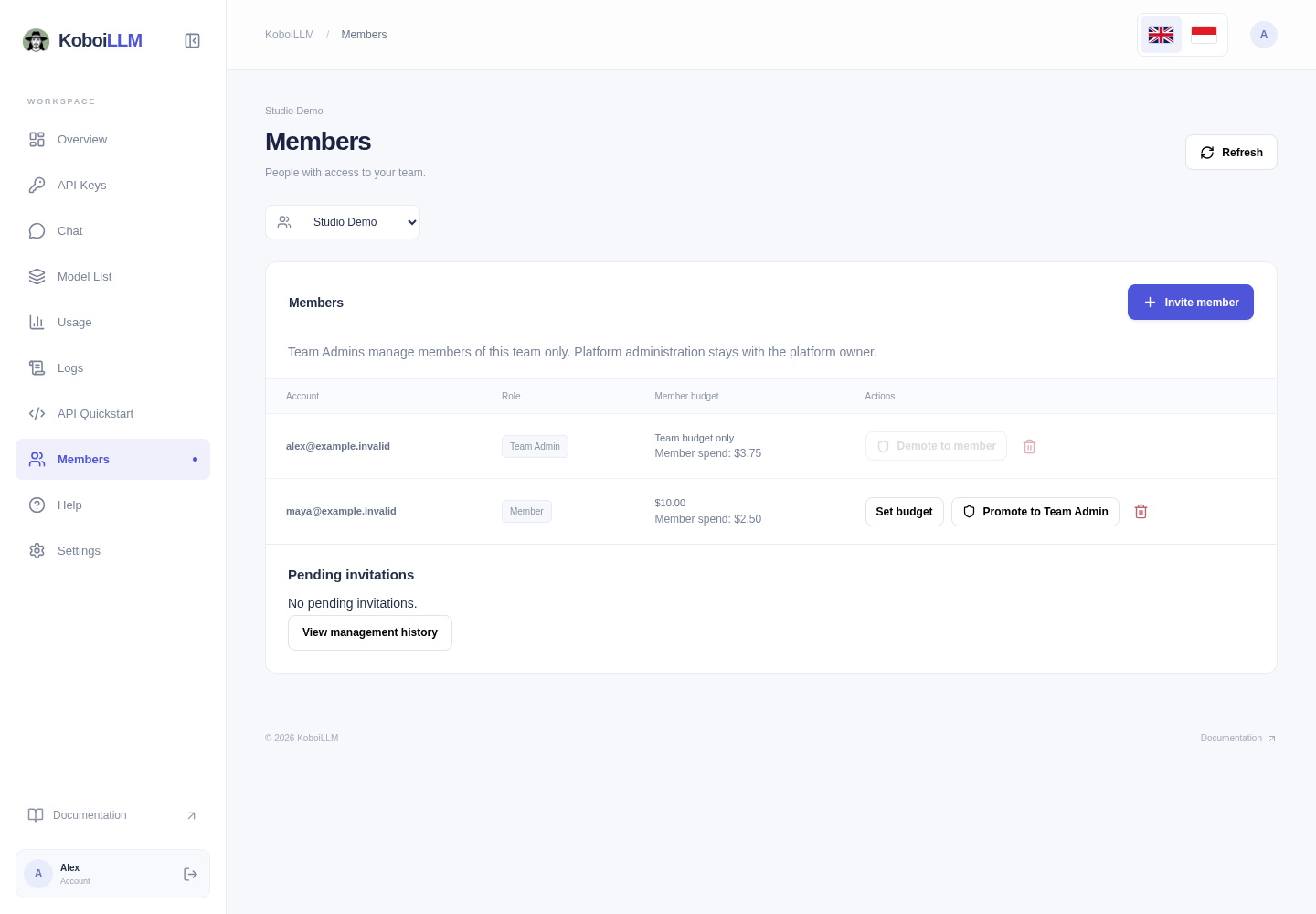
Team roles
| Role | Actions |
|---|---|
| Member | Uses team access and creates self-owned API keys. Does not manage other members. |
| Team Admin | Invites/removes members, manages team roles, and sets ordinary members’ budgets in the assigned team. |
| Platform administrator | Controls platform privileges and bootstraps Team Admin delegation. |
A Team Admin is not a platform administrator and does not automatically receive a management API key. Team-wide usage visibility and key actions still follow the account’s available permissions.
Invite a member
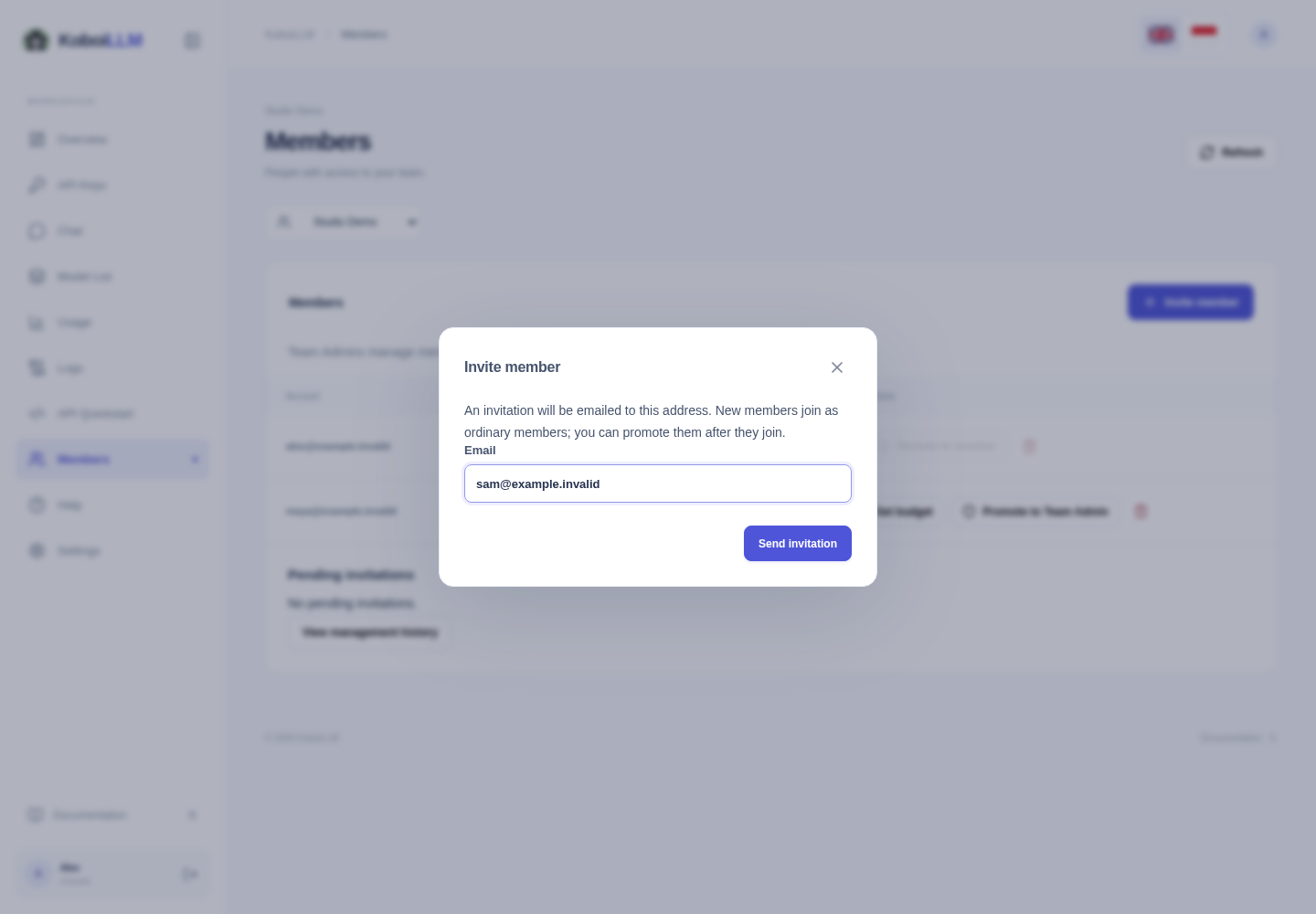
- Select Invite member, enter the recipient’s email, and select Send invitation.
- The invitation appears under Pending invitations and expires after 48 hours. You can revoke it before acceptance.
- The recipient opens the email link, signs in as the exact recipient, and selects Join team. New users set up their account first and reopen the invitation afterward.
- New members join as ordinary members. If needed, use Promote to Team Admin after they join and confirm the change.
See Account Creation for the recipient flow. Protected accounts cannot be managed here. The last Team Admin cannot be removed or demoted until another is appointed. Removing a member also deletes their keys in that team; their account, other teams, and usage history remain.
Set a member budget
On an ordinary member’s row, choose Set budget, enter a USD limit, and select Confirm change.
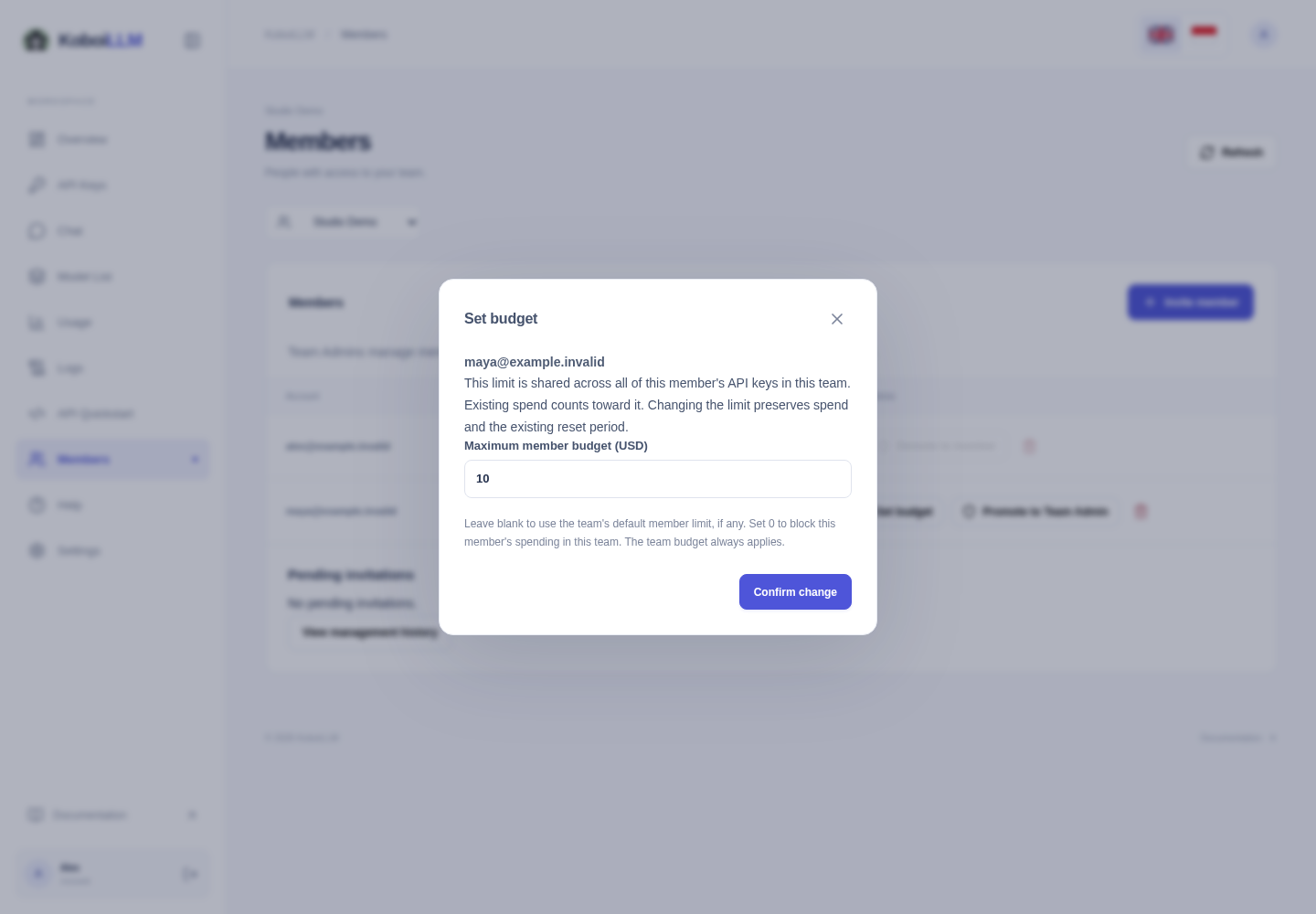
- The limit covers all of the member’s keys in this team combined. Key budgets add separate limits and the team budget always applies.
- Existing spending counts toward the limit. Changing it does not reset spending or change an existing reset period.
- Blank inherits the team’s default member limit, if any. 0 blocks that member’s spending in the team.
- Team Admins cannot edit their own or another Team Admin’s budget.
Example: with a $10 member limit, key A spending $3 and key B spending $2 use $5 of the shared limit. Creating key C does not restore the remaining allowance to $10.
Use View management history to review the membership actions available to you. If controls are missing, check your team/role or contact the administrator; an inference key does not replace management permissions.