
Dashboard Chat
Open Chat below API Keys to talk to a text model. Sign in to the dashboard, then enter the API key to use for your requests.
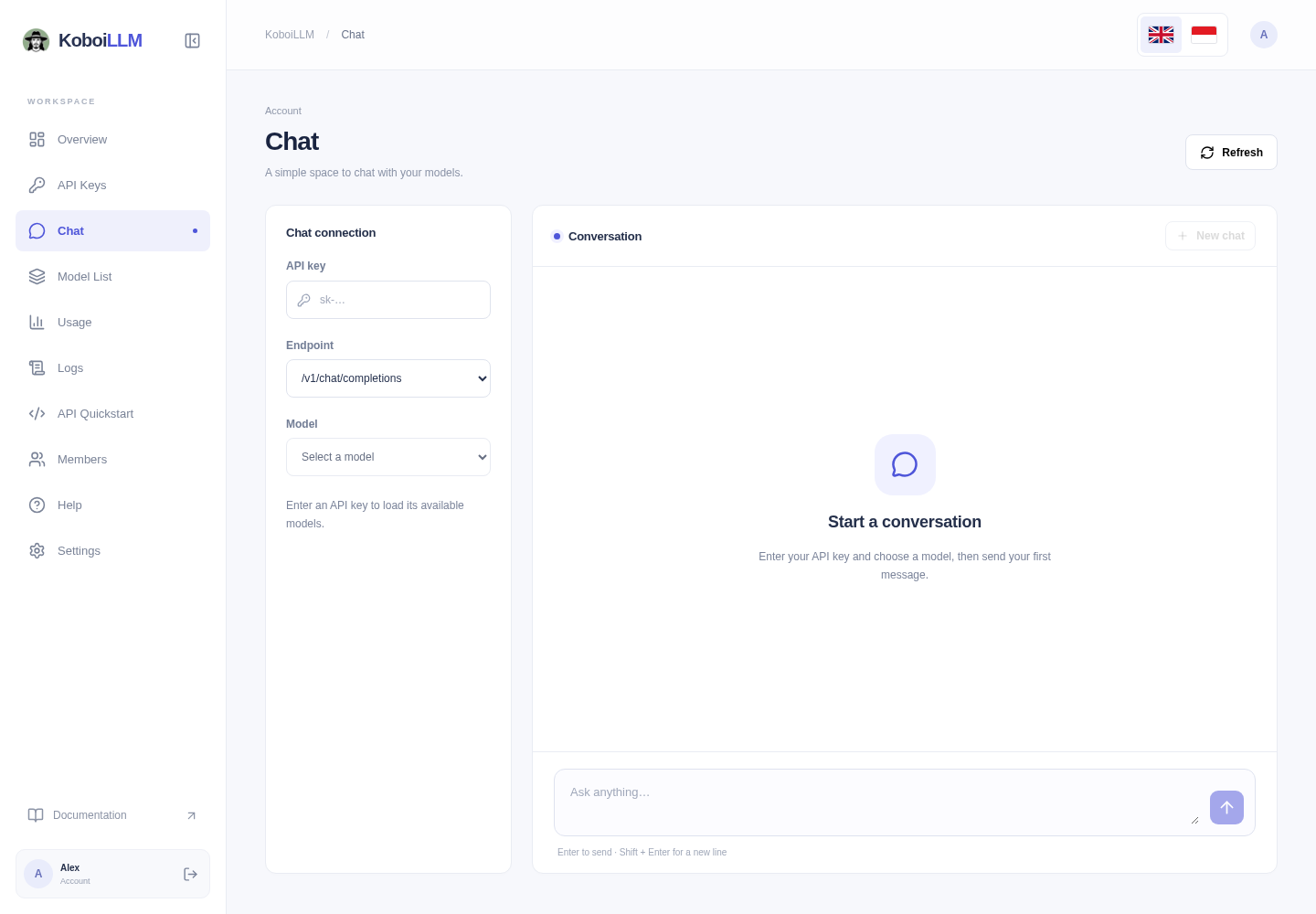
Start a conversation
- Have an active API key ready.
- Enter it in Chat connection. Chat loads models available to that key.
- Choose Chat Completions or Responses, then a compatible model. Switching endpoints may change the model list.
- Type a message and press Enter or Send message. Use Shift + Enter for a new line.
- Replies stream as they arrive. Use Stop generating to stop the current response or New chat to start over.
Chat uses the entered key’s team, model access, and budgets. The dashboard team selector does not replace this key. Chat requests consume API credit just like requests from an application.
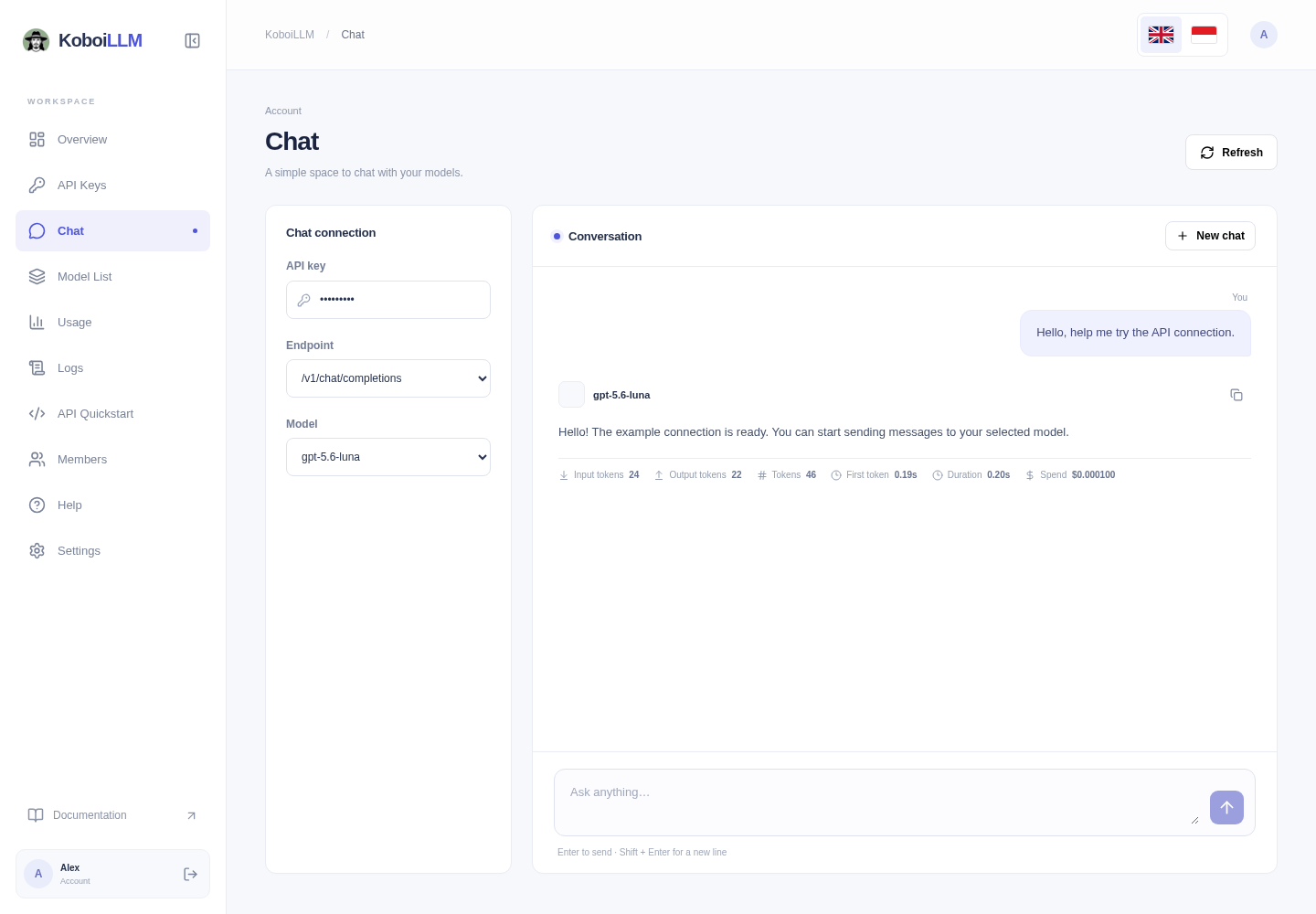
Read response statistics
Replies show input/output and total tokens, first-token time, duration, and cost when reported. Cache and reasoning counts appear when available. — does not mean free: the engine may not have reported the value. Stopped or interrupted generations can have incomplete statistics.
Check Logs for recorded usage. Chat does not provide a saved conversation history or persist the entered key; copy replies you want to keep before leaving the page.
Troubleshooting
- Check the key’s validity, expiration, model access, and budgets.
- Choose a model compatible with the endpoint; image/audio models are not Chat models.
- Start a new chat if the conversation is too long.
- For image generation or vision input, use the documented API examples. This Chat composer accepts text.